How to make a TikTok Post mockup
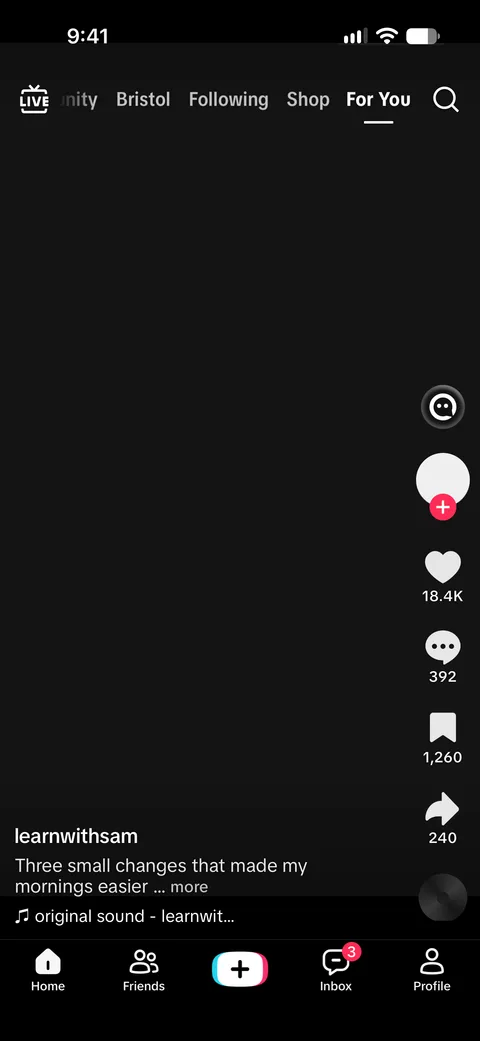
- Upload the image you want to show as the video frame, and choose whether it fills the screen or fits inside it.
- Enter the username and caption. Hashtags and emoji work as you type them.
- Set likes, comments, favorites and shares as plain numbers; they are shortened the way the app shows them, such as 18.4K or 2.4M.
- Fill in the sound name, upload a sound cover if you like, and turn on the verified badge, the red heart or the following state.
- Press Download PNG, or start from one of the examples in the menu above the form.
What you can customize
Video frame
Any image as the background, either filling the screen or fitted with bars.
Creator
Username, profile photo, verified badge, follow button state and an optional story ring.
Caption
Caption text with hashtags and emoji, plus an optional “See translation” link.
Engagement counts
Likes, comments, favorites and shares with automatic compact formatting, and a liked (red heart) state.
Sound
Sound name, cover image and two sound label styles.
Screen details
Status bar time, inbox badge, a gifts promo, a full-screen button and a buffering line, under the advanced options.
Tips for a realistic TikTok Post screenshot
Use a vertical image
TikTok videos are 9:16. A tall image fills the screen without awkward cropping; a landscape image looks better with the “fit” framing.
Make the numbers believable
Engagement usually drops from likes to favorites to comments to shares. Counts with a natural mix of digits look more real than round numbers.
Keep the caption short
Long captions are cut off in the app. One or two lines plus a few hashtags matches what people expect.
Mind the right-hand column
The action buttons cover the right edge of the video. Keep faces and text in your picture away from that area.
What people use it for
- Showing a client how a campaign or creator post could look
- Pitch decks, content calendars and social media plans
- Tutorials and courses explaining the layout of a TikTok post
- Fan-made and parody content that is clearly labelled as such
Please keep it honest: label staged screenshots as mock-ups or fiction where people could mistake them for real. See the terms of use.
Frequently asked questions
Is the TikTok post mockup generator free?
Yes. Creating and downloading screenshots is free; free downloads include a small SocialMock watermark. Pro ($9/month) removes it.
Can I use my own picture?
Yes. Upload any image as the video frame. It is processed in your browser and is not uploaded to a server.
How are the numbers formatted?
Type a plain number, such as 2400000, and it is shown in the compact form the app uses, such as 2.4M.
Can I add the verified badge?
Yes. Turn on “Verified badge” and it appears next to the username.
Does this post anything to TikTok?
No. The tool only creates an image on your device. It does not connect to TikTok or any account.
What size is the image?
A PNG of 1179 × 2556 pixels, the size of an iPhone screenshot, without a phone frame.
Is SocialMock affiliated with TikTok?
No. SocialMock is an independent tool and is not affiliated with or endorsed by TikTok. TikTok is a trademark of its owner.
What should I not use it for?
Don’t present an invented post as real, impersonate a real person or brand, or use the image to mislead or defraud anyone.